All features at a glance.

Shape your easyjob interface, create direct routes and manage data by your rules. Discover 25 ways to support your everyday work.

Look

Your look. Your interface.

Colours, icons and layout – shape easyjob to suit your team.

Colours

Your easyjob. In your colours.

Coordinated colour palettes, your own colours and images – tailor easyjob to your company.
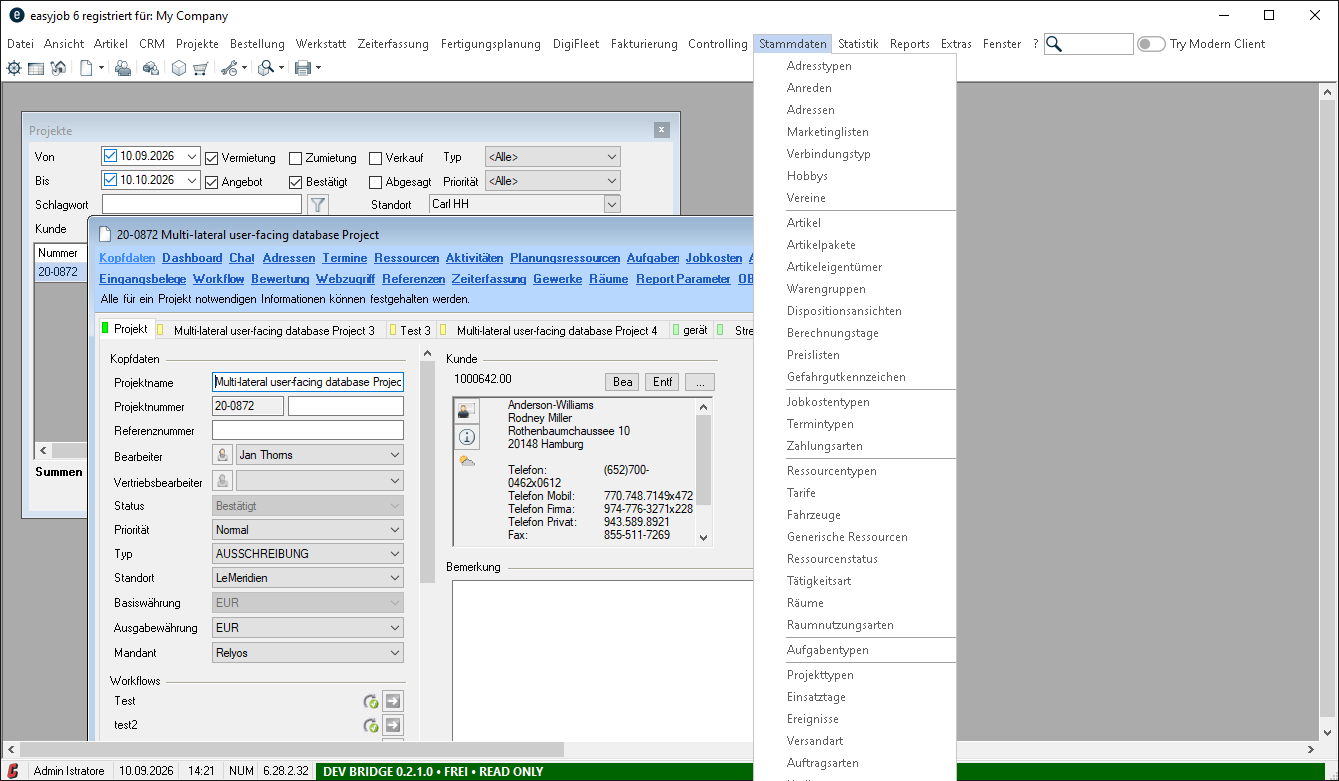
easyjob 6 without Customizer: light interface with a project window and the master data menu open.
Without Customizer
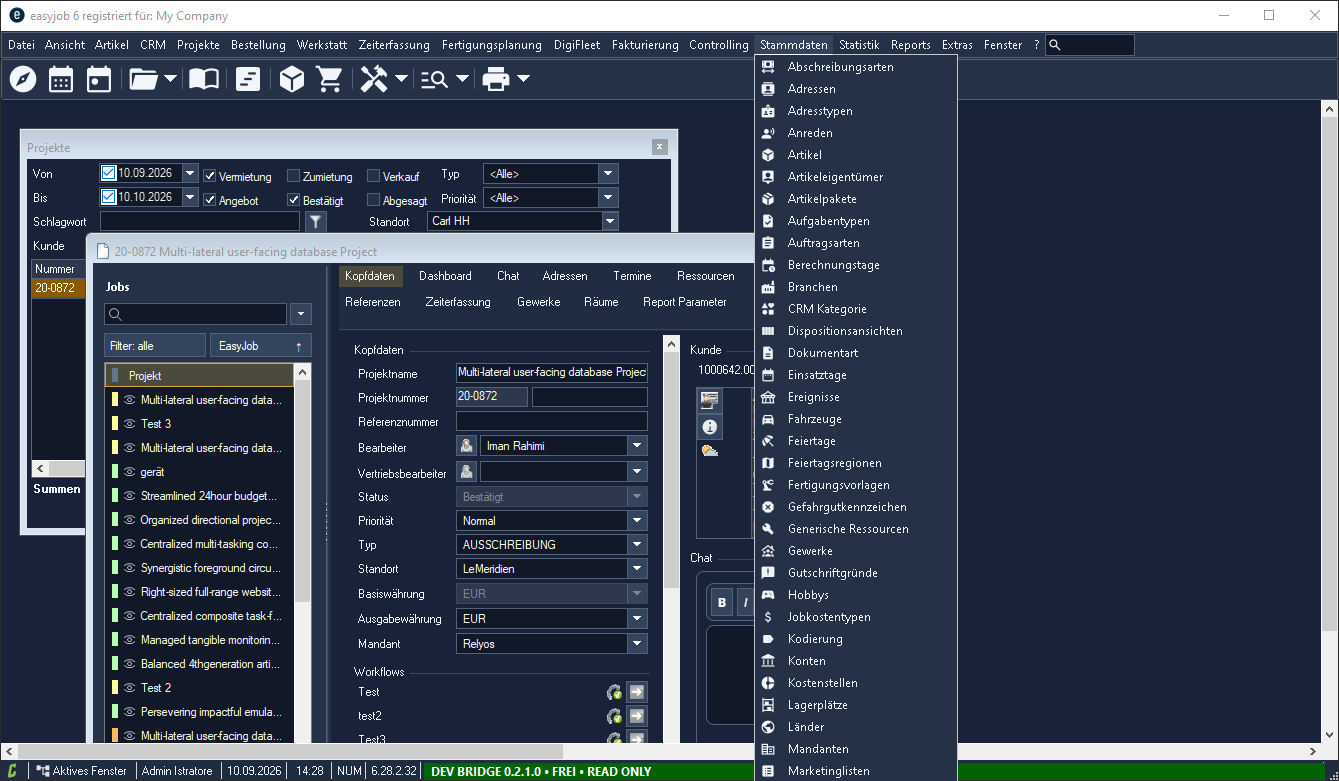
easyjob 6 with Customizer: dark interface with customized icons, vertical job navigation and the master data menu open.
With Customizer
Labels

Your language and terminology

Adapt the labels of fields, tabs, menus and actions to your team's terminology. Familiar wording makes everyday navigation easier for your team.

easyjob 6 without Customizer: light interface with a project window and the master data menu open.
Without Customizer
easyjob 6 with Customizer: dark interface with customized icons, vertical job navigation and the master data menu open.
With Customizer
Icons

Modern icons and your own symbols

Style menus, tabs and actions with consistent symbol templates or your own icons. Recognise recurring commands through familiar visual cues.

easyjob 6 without Customizer: light interface with a project window and the master data menu open.
Without Customizer
easyjob 6 with Customizer: dark interface with customized icons, vertical job navigation and the master data menu open.
With Customizer
Layout

An interface that fits your workflows

Hide unnecessary fields and controls and put the important elements in the right order. Keep your team's relevant information in focus.

easyjob 6 without Customizer: light interface with a project window and the master data menu open.
Without Customizer
easyjob 6 with Customizer: dark interface with customized icons, vertical job navigation and the master data menu open.
With Customizer
Tabs

Customise tabs in your windows

Show or hide tabs and adjust their order, labels, colours and display style. Give frequently used content its own suitable place.

easyjob 6 without Customizer: light interface with a project window and the master data menu open.
Without Customizer
easyjob 6 with Customizer: dark interface with customized icons, vertical job navigation and the master data menu open.
With Customizer
Job navigation

Arrange jobs vertically within a project

Use clear vertical job navigation to find your way around more easily, especially in projects with many jobs. Keep your bearings between the project's different tasks.

easyjob 6 without Customizer: light interface with a project window and the master data menu open.
Without Customizer
easyjob 6 with Customizer: dark interface with customized icons, vertical job navigation and the master data menu open.
With Customizer
Material list

Clearer material lists

Make extensive material lists easier to navigate with coordinated colours and clearly recognisable highlights. Distinguish important entries when working through longer lists.

easyjob 6 without Customizer: light interface with a project window and the master data menu open.
Without Customizer
easyjob 6 with Customizer: dark interface with customized icons, vertical job navigation and the master data menu open.
With Customizer
Calendar

Give calendars a clearer structure

Make calendar views easier to read with customised colours and distinct day lines. Keep a clearer overview of your planning.

easyjob 6 without Customizer: light interface with a project window and the master data menu open.
Without Customizer
easyjob 6 with Customizer: dark interface with customized icons, vertical job navigation and the master data menu open.
With Customizer
Actions

Your actions. Direct routes.

Fewer detours. More time for your work.

Shortcuts

Create your own links to open frequently used records without navigating through menus.

  • Open projects
  • Open jobs
  • Open workshop processes
  • And much more

Arrange windows

Choose where your windows appear and how large they are.

  • Set window sizes
  • Choose window positions
  • Arrange windows quickly

Web windows & tabs

Use web content directly in easyjob, in a separate window or as a tab in supported areas.

  • Open portals
  • View dashboards
  • Use web applications

Autostart

Choose what opens or runs automatically when you start easyjob.

  • Open windows
  • Open websites
  • Run actions

Add your own buttons and menu entries for frequently used functions.

  • Menus and toolbars
  • Supported windows
  • Footer bars

Workflows & reports

Access your workflows and reports directly through custom buttons.

  • Start workflows
  • Open reports

Files & folders

Open frequently used files and folders directly from easyjob.

  • Open documents
  • Open folders
  • Open supported DMS object folders

Text snippets

Reuse prepared text and add variables with information from the current record.

  • Reuse text
  • Insert variables

Hotkeys

Assign your own keyboard shortcuts to windows you use frequently.

  • Open project windows
  • Open job windows
  • Open many other windows
Data

Your data. Your rules.

You know what information your team is missing and which settings they need in their daily work. Add what you need and manage it centrally.

Custom fields

Extended custom fields

Add the information your company really needs to projects, items, addresses and many other objects. Keep additional details with the relevant objects.
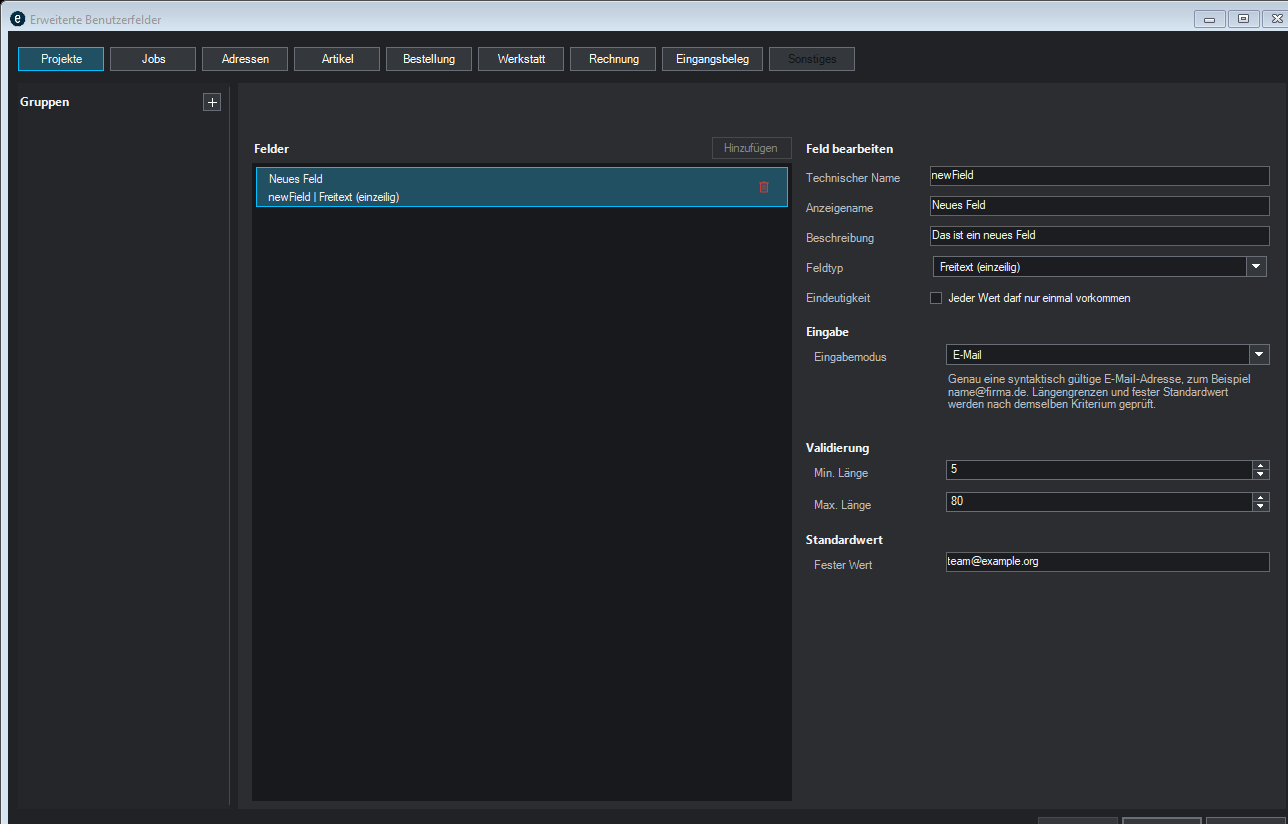
Extended custom fields: object selection, groups and a text field with input rules and a default value.
The extended custom fields window brings together your own information, field types, input rules and default values.
Field types

The right field type for your data

Use text, numbers, dates, times, checkboxes, and single- or multiple-selection fields. Choose a format that suits the information.

Extended custom fields: object selection, groups and a text field with input rules and a default value.
The extended custom fields window brings together your own information, field types, input rules and default values.
Placement

Your own fields within your workflow

Place custom fields in supported creation and editing forms and organise related information into clear groups. Keep related details together when entering a record.

Extended custom fields: object selection, groups and a text field with input rules and a default value.
The extended custom fields window brings together your own information, field types, input rules and default values.
Input rules

Input that follows your rules

Define required values, permitted ranges and uniqueness checks for your own custom fields. Help your team enter clear, consistent information.

Extended custom fields: object selection, groups and a text field with input rules and a default value.
The extended custom fields window brings together your own information, field types, input rules and default values.
Default values

Start with suitable default values

Prepopulate supported input fields when creating new records and reduce repetitive input. Avoid entering the same starting values repeatedly.

Extended custom fields: object selection, groups and a text field with input rules and a default value.
The extended custom fields window brings together your own information, field types, input rules and default values.
Central settings

Central control for the whole company

Manage interface settings in a shared window — with company-wide defaults and targeted adjustments for sites, groups and individual users. Consider shared standards and different requirements in one place.

The effective value depends on the individual setting. Personal adjustments stay within the allowed scope; existing easyjob permissions still apply.
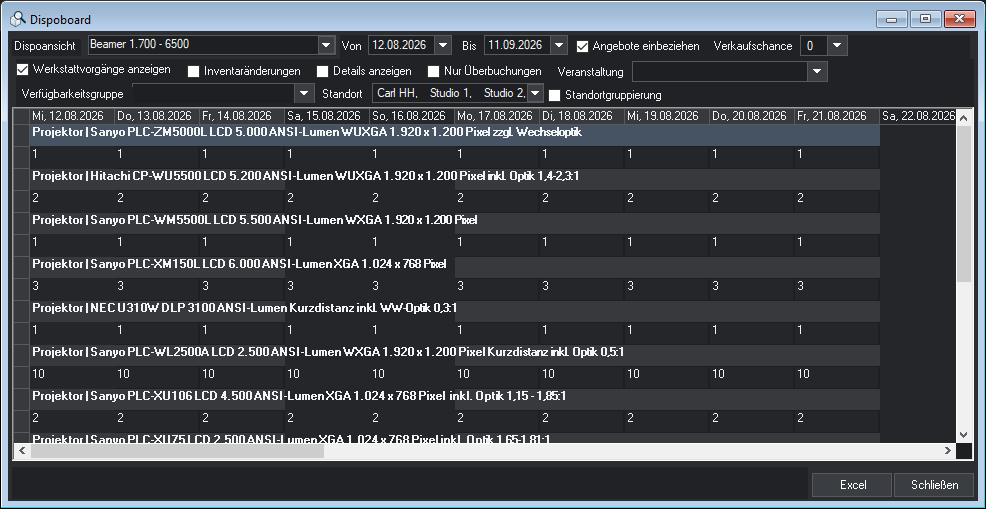
Scheduling overview with a customised easyjob interface.
A customised easyjob workspace.
Personal look

“My user interface” for your team

Let employees create their own menus, toolbars, autostart actions and footer entries — within the options you enable. Give your team room to adapt their everyday workspace.

Scheduling overview with a customised easyjob interface.
A customised easyjob workspace.
Filters

Define and distribute filters centrally

Provide suitable filters and default filter values for supported lists across the company or for specific sites, groups and users. Prepare recurring list views for each team's daily work.
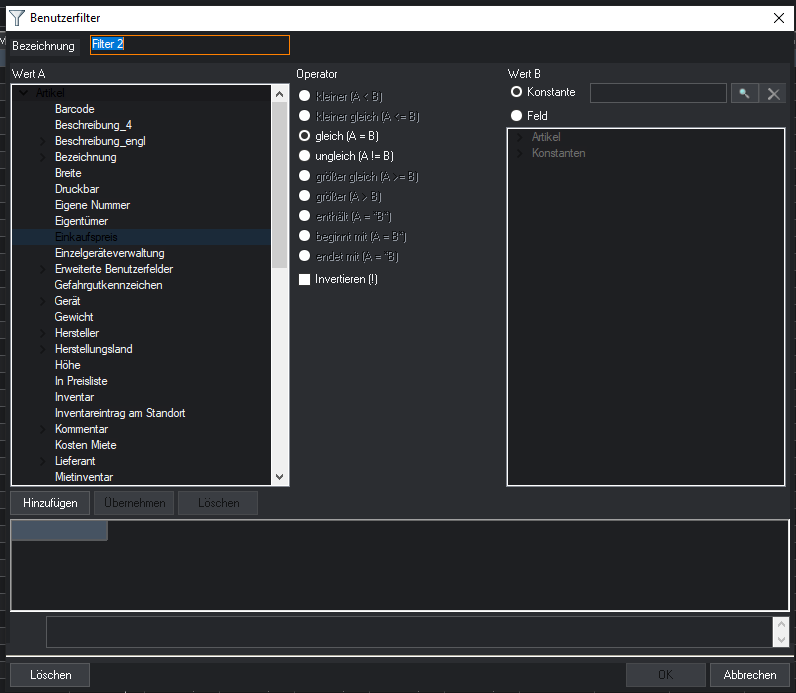
Customizer settings for distributing a user filter to supported lists.
Distribute filters and default values for supported lists, giving each team an appropriate starting view.
The request could not be completed. Please try again. Back to product